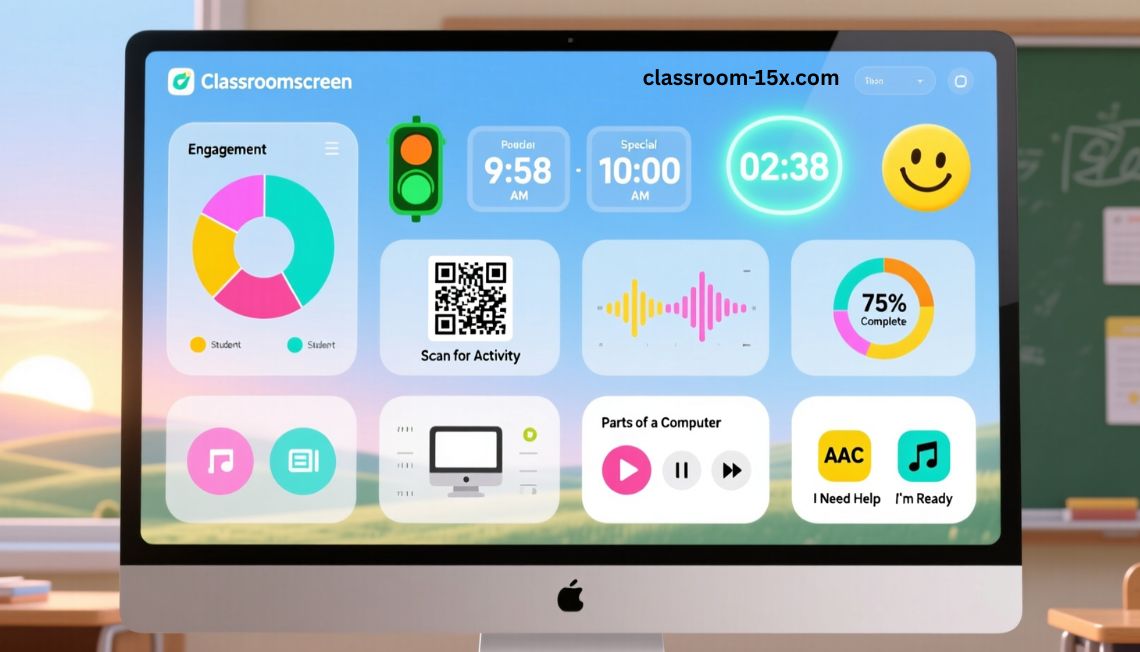
You teach kids every day. You want them to focus and have fun. That’s where Classroom Screen comes in. It’s a free online tool that acts like a big digital board for your class. You can show it on your projector or smartboard. It has widgets like timers, polls, and group makers. We love it because it makes your job easier. No need to switch apps or yell for quiet. Just open it in your browser and go.
Over 450,000 teachers use it daily in more than 180 countries. That’s a lot of happy classes. If you’re new to it, stick with us. We’ll show you why it’s great and how to use it.
Why Use Classroom Screen in Your Class?
Classroom Screen helps you manage your room without stress. You can set timers to keep things on track. Kids see what’s next, so they stay calm. It saves you time too. No more drawing on the board or passing out papers for groups.
We hear from teachers that it cuts down on chaos. You get more teaching done. Plus, it’s fun for kids. They like the colors and games. It works for any grade, from little ones to teens.
Key Features That Make Teaching Easy
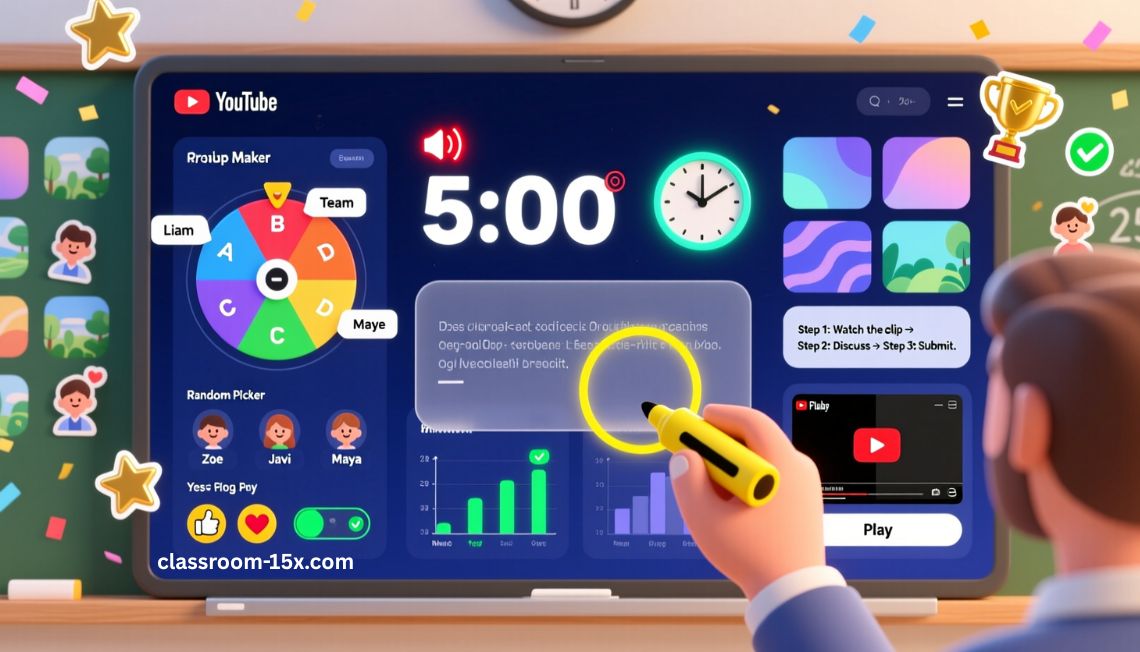
Classroom Screen packs a punch with simple tools. You pick what you need and drag them on your screen. Here’s what stands out.
Timers and Clocks
You need to time activities? Use the countdown timer. Set it for 5 minutes or an hour. It beeps when time’s up. There’s a clock too, so kids know the time.
Group Makers and Random Pickers
Mix up groups fast. The group maker splits your class into teams. Or use the name picker to call on kids fairly. No more “pick me” fights.
Polls and Feedback Tools
Ask quick questions. Kids vote with yes/no or emojis. You see results right away. Great for checking if they get the lesson.
Drawing and Annotation
Draw on the screen like a real board. Highlight text or add shapes. You can blur parts to hide surprises.
Backgrounds, Stickers, and Themes
Make it pretty. Pick from 250+ backgrounds. Add stickers for rewards. Use pastel colors for a calm vibe.
Media Embed and Instructions
Show videos or pics without ads. Paste a YouTube link and play it. Add text boxes for clear steps.
How Other Teachers Use Classroom Screen
Teachers share cool ideas. One uses it for morning greetings. She puts up a fun image and what kids need that day. Another runs polls in ESL class to get kids talking. A math teacher uses timers for quick drills. We see it in over 2,300 schools. You can try these in your room too.
Get Started with Classroom Screen in Minutes
New to it? No worry. Go to the site and click start. No sign-up needed for basics. Pick widgets from the bottom bar. Drag them where you want. Click save if you have Pro. It takes 5 minutes to learn. Watch their quick video if you need help.
Join the Big Teacher Community
You’re not alone. Millions use Classroom Screen. Follow their Instagram for tips. Read the blog for new ideas. Share your screens with others. It’s like a club for teachers who want to do better.
Free vs Pro: Which Plan Fits You?
Classroom Screen is free for most things. But Pro adds extras. Here’s a quick look.
| Feature | Free Basic | Pro ($36/year) |
|---|---|---|
| Widgets like timers and polls | Yes | Yes |
| Save your screens | No | Yes |
| Share screens with others | No | Yes |
| No ads | Yes | Yes |
| Use in unlimited classes | Yes | Yes |
| Extra templates and tools | Some | All |
Step-by-Step Guides for Top Features
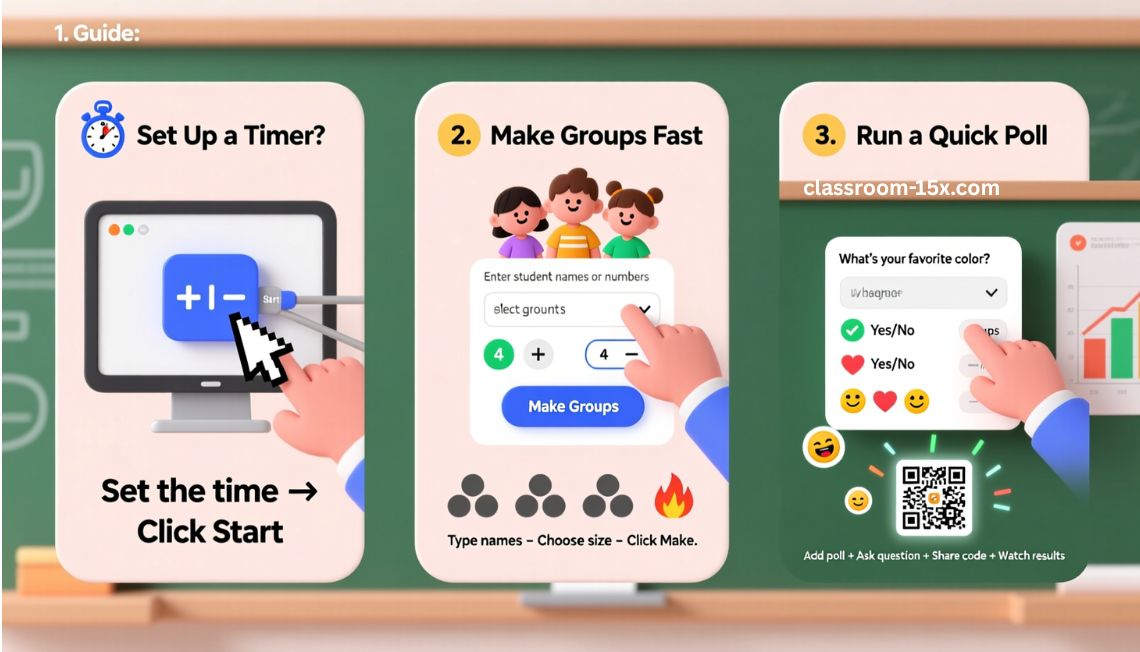
We added these how-tos to make it easy. Follow along.
Set Up a Timer
- Open Classroom Screen.
- Click the timer widget.
- Drag it to your board.
- Set the time with + or – buttons.
- Hit start. Done!
Make Groups Fast
- Pick the group maker.
- Type in kid names or numbers.
- Choose how many groups.
- Click make. It sorts them.
Run a Quick Poll
- Add the poll widget.
- Type your question.
- Pick yes/no or emojis.
- Share the code with kids.
- Watch votes come in.
Read: Class Companion: AI Feedback & Tutoring to Improve Student Outcomes
Classroom Screen vs Other Tools: Which Wins?
Wonder if there’s better? We checked. Here’s how it stacks up.
| Tool | Price | Key Strength | Weak Spot |
|---|---|---|---|
| Classroom Screen | Free/Pro $36 | Easy widgets, no sign-up | Collaboration coming soon |
| Microsoft Whiteboard | Free | Good for drawing | More complex for kids |
| Padlet | Free/Paid | Notes and ideas | No timers |
| Miro | Free/Paid | Team work | Too many options for quick use |
| ClassDojo | Free | Behavior points | Less screen tools |
Tips and Tricks to Get More from Classroom Screen
Want to level up? Try these.
- Blur your screen at the start to build buzz.
- Expand the board for big lessons.
- Use stickers as rewards. Kids love them.
- Embed calm music for quiet time.
- Save templates for each subject. Switch fast.
- Check noise levels with the meter widget.
These make your days smoother.
Final Thoughts
If you want a calmer, more organized classroom, Classroom Screen is absolutely worth using in 2026. It gives you everything you need in one simple place—timers, polls, group makers, and visual cues—without extra apps or setup. You open your browser, project the screen, and start teaching.
What really makes Classroom Screen stand out is how easy and flexible it is. You control the pace of your lesson. Your students know what to do and what’s coming next. That means less noise, fewer interruptions, and more time for real learning.
The free version works perfectly for most teachers, especially if you teach one class or want a quick classroom management tool. If you like saving layouts, sharing screens, or working with a team, the Pro plan is affordable and adds real value.
FAQs About Classroom Screen
We gathered top questions. Here are answers.
What is Classroom Screen?
It’s a free online board for teachers. You add tools like timers to help run your class.
Is Classroom Screen free?
Yes, basics are free forever. Pro costs $36 a year for saves and shares.
Do I need to install anything?
No. It works in your web browser. No apps or downloads.
Can kids use it on their devices?
For polls, yes. They join with a code. Other parts are for your main screen.
What grades is it for?
All grades. From kindergarten to high school.
How do I save my setups?
Get Pro. Then click save and name it.
Is there a mobile app?
No, but it works on tablets and phones in browser.
Can I use it offline?
No, it needs internet.
How many widgets can I add?
As many as you want. Drag and drop.
What if I need help?
Check their help center or blog. Or email support.