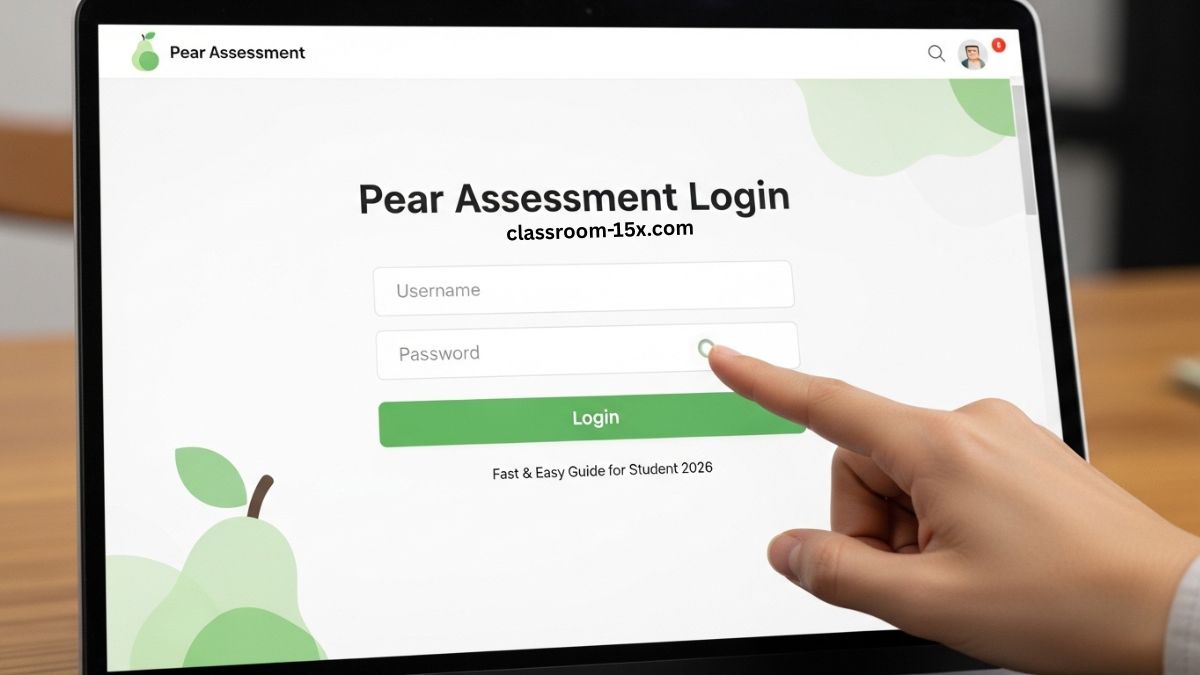
Pear Assessment is an online tool your school uses for quizzes, tests, and assignments. It gives quick feedback and helps teachers see how you’re doing. Logging in is simple once you know the steps. This guide covers everything you need to sign in, fix issues, and get started. Let’s make it easy!
Ways to Log In to Pear Assessment
You can sign in a few ways. Schools often pick one main method. Check with your teacher if you’re not sure which to use.
- Google — Best if your school uses Google accounts.
- Clever — Common in many schools for single sign-on.
- Microsoft (Office 365) — Used if your school has Microsoft accounts.
- Email and Password — For direct sign-in if other options don’t work.
Here’s a quick comparison:
| Login Method | Best For | How Easy? | Needs Extra Setup? |
|---|---|---|---|
| Google school emails | Very easy | No | |
| Clever | Schools using Clever portal | Easy | Open Clever first |
| Microsoft/Office 365 | Microsoft school accounts | Easy | No |
| Email/Password | Direct login | Simple | Remember password |
Step-by-Step: How to Log In
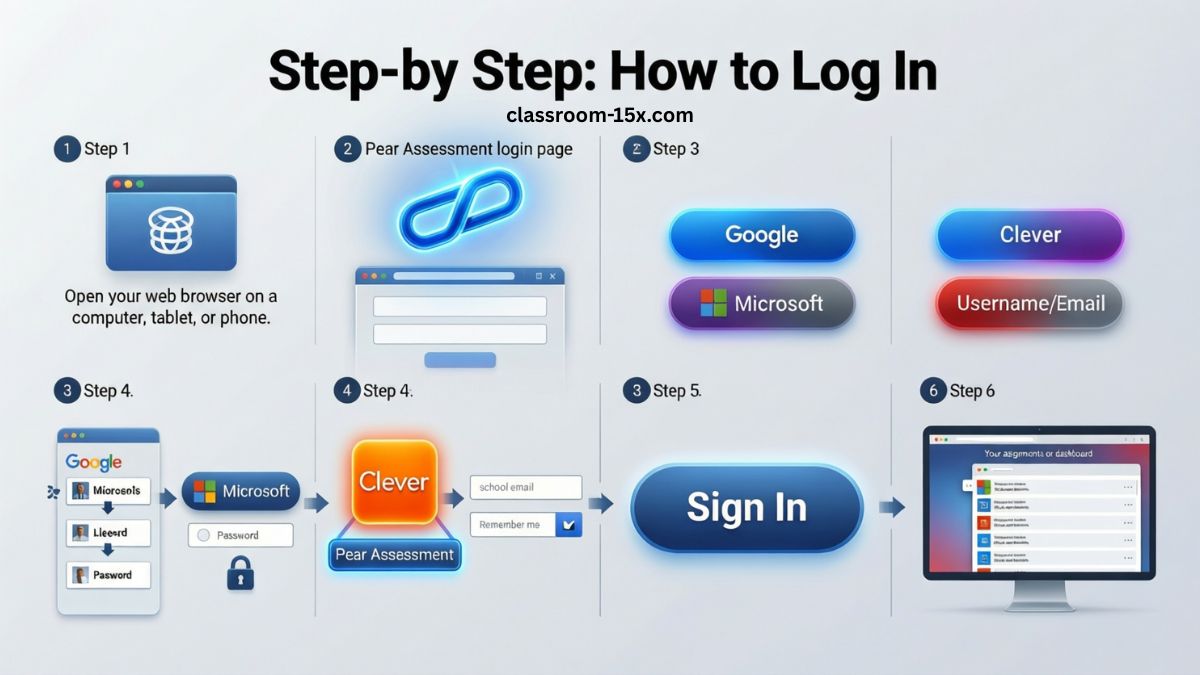
- Open your web browser on a computer, tablet, or phone.
- Go to the Pear Assessment login page.
- Look for the sign-in buttons at the top or center.
- Pick your school’s method (Google, Clever, Microsoft, or Username/Email).
- Follow the prompts:
- For Google or Microsoft: Choose your school account and enter your password if asked.
- For Clever: Open Clever first, then click the Pear Assessment tile.
- For Email/Password: Type your school email and password. Check “Remember me” if it’s your own device.
- Click “Sign In” or “Log In.”
- You’re in! You should see your assignments or dashboard.
That’s it most of the time. It takes less than a minute.
Logging In from Home
Many students log in from home when school is remote or for homework. You don’t need special school tools. Just use your internet and follow the same steps above. Make sure you have a quiet spot and good Wi-Fi. If your school uses Clever, log into Clever at home the same way.
Read: Pear Assessment: Simple Tools for Smart Testing and Student Success 2026
What to Do If You Can’t Log In
Login problems happen. Here’s how to fix them fast.
- Wrong password? Use the “Forgot Password?” link on the login page. Enter your email. Check your inbox (or spam) for a reset link.
- Account not found? Double-check your email spelling. Ask your teacher if your account is set up.
- Clever not working? Log out of Clever and try again. Or use another method if allowed.
- Browser issues? Clear cookies or try a different browser like Chrome or Edge.
- Still stuck? Tell your teacher or school tech person. They can help reset things.
How to Reset Your Password
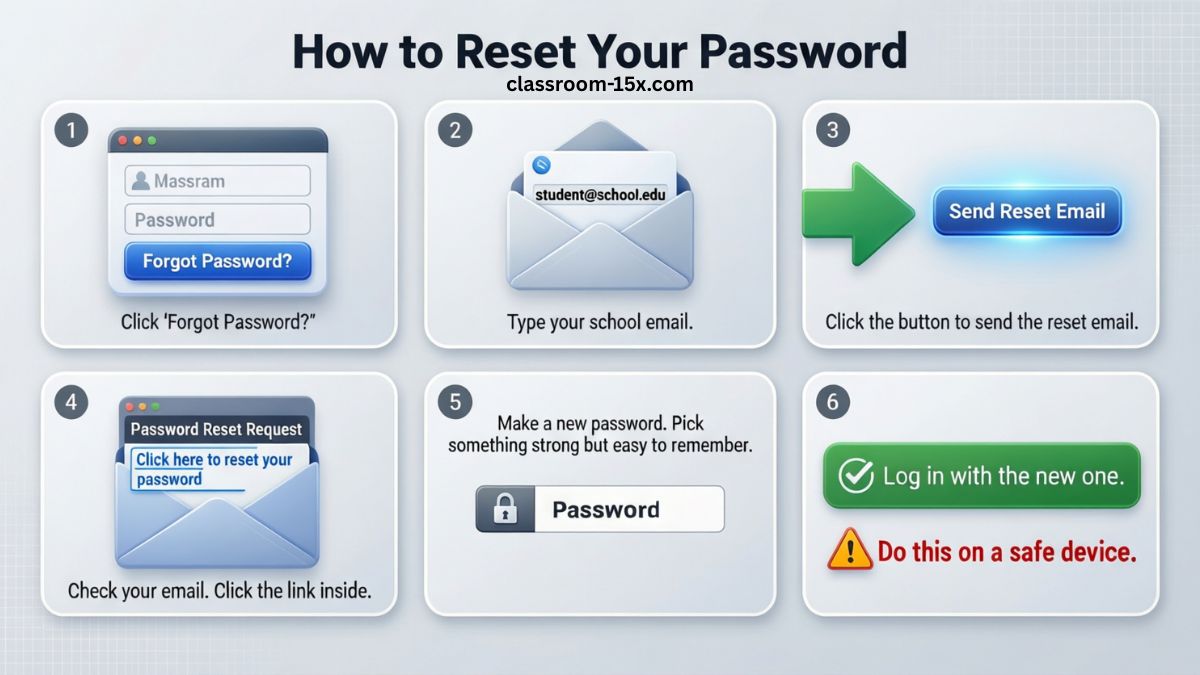
Forgot your password? No worry.
- On the login page, click “Forgot Password?”
- Type your school email.
- Click the button to send the reset email.
- Check your email. Click the link inside.
- Make a new password. Pick something strong but easy to remember.
- Log in with the new one.
Do this on a safe device.
Logging In on Phone or Tablet
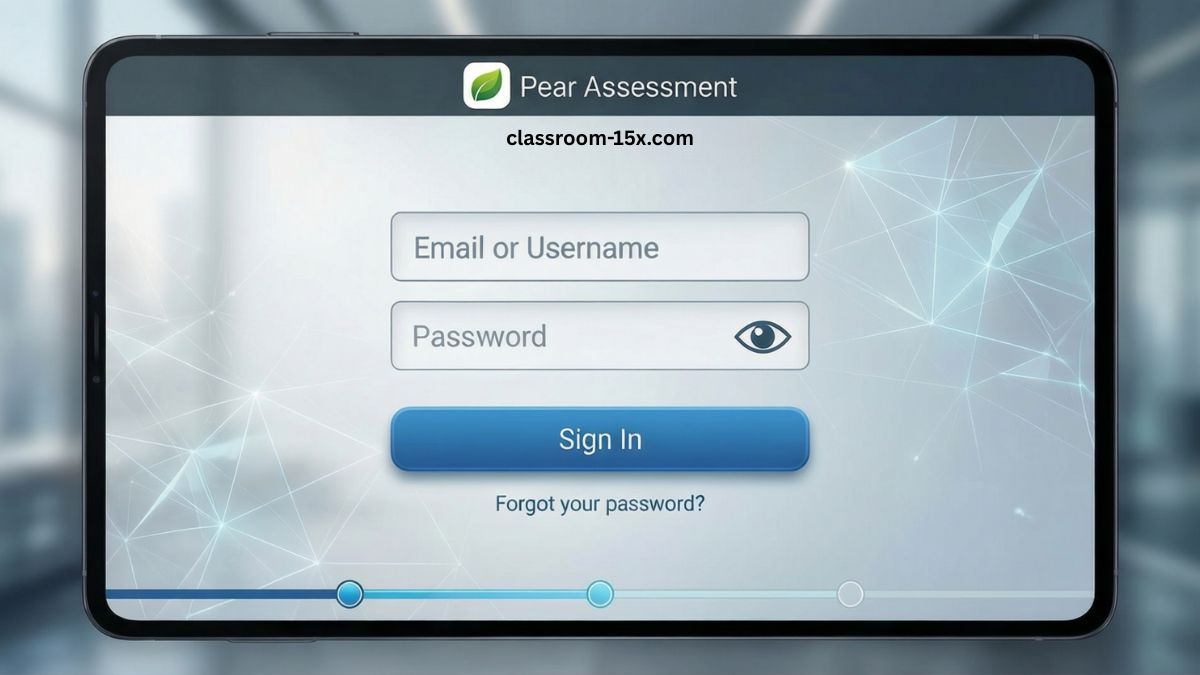
You can use Pear Assessment on mobile.
- Open your browser (Safari or Chrome works best).
- Go to the login page.
- Sign in the same way as on computer.
- The site fits your screen. Some tests may work better on bigger screens, but most are fine on phones.
Tip: Turn your phone sideways for more space.
After You Log In: What You See
Once inside, you see your dashboard. It shows:
- Your current assignments and due dates.
- Past tests with scores.
- Quick links to start new work.
Look for a list or cards. Click an assignment to begin. Follow instructions on screen. Submit when done.
You get instant scores on many questions. Teachers see your work too.
Tips for First-Time Users
- Practice logging in before a big test.
- Use your school email only.
- Don’t share your password.
- If you see an error, take a photo and show your teacher.
- Stay calm — most issues are quick fixes.
FAQs
How do I know which login method to use? Ask your teacher or look at school emails. They tell you the main way.
Can I log in without school permission? No. You need a school account set up by your teacher.
What if I have two accounts? Use the one your school gave you. If confused, ask your teacher.
Is Pear Assessment free for students? Yes, schools pay for it. You don’t pay anything.
Why can’t I see my assignments? They may not be open yet. Check due dates or ask your teacher.
Can parents help with login? Yes, parents can help read steps or reset passwords if needed.
Conclusion
Logging into Pear Assessment is quick and straightforward once you know the right steps—whether you’re using Google, Clever, Microsoft, or your email and password. With this simple guide, most students can sign in within seconds, fix common issues like forgotten passwords or browser glitches, and jump straight into their quizzes, tests, or assignments. Keep your school email handy, double-check your login method with your teacher if needed, and remember that help is always just a quick question away from your school staff. You’ve got this—happy learning and good luck on every assessment!