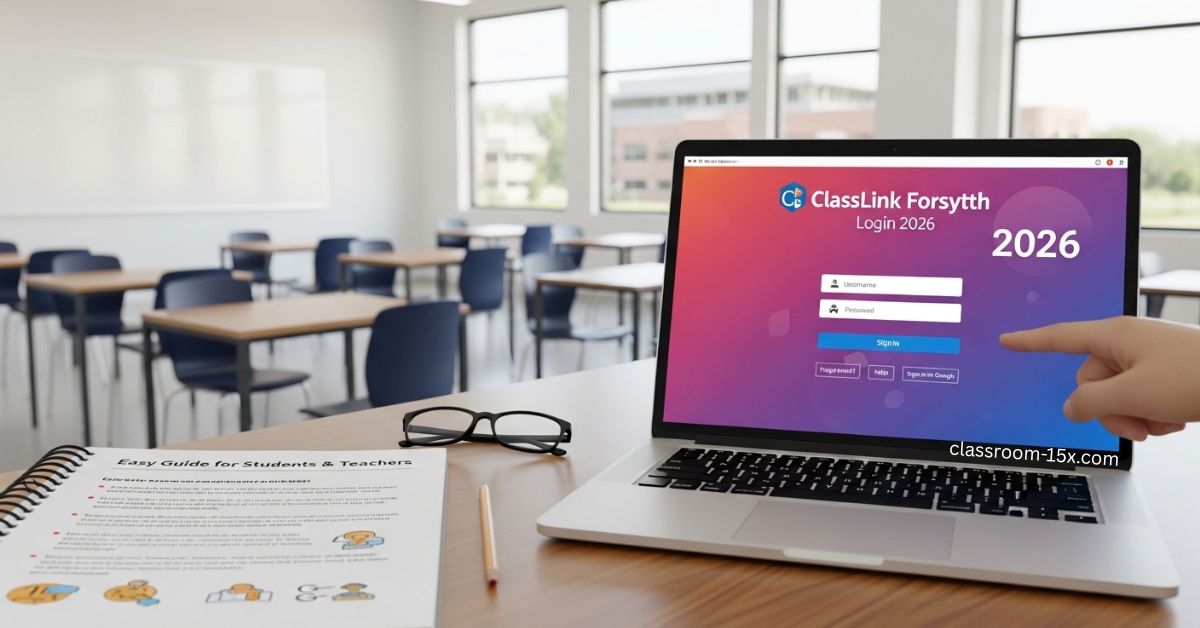
Hey there! If you go to school in Forsyth County, Georgia, you probably use ClassLink every day. It is called myFCS or ClassLink Forsyth. One quick login gives you access to Canvas, Google Drive, Office 365, and lots more school tools. No more typing passwords over and over.
This guide walks you through everything in plain words. Whether you are a student, teacher, or parent helping at home, you will learn how to log in fast, use the apps, and fix common problems. Let’s get started.
What Is ClassLink Forsyth and Why Does Your School Use It?
ClassLink is a single sign-on portal. That means you type your school username and password once. Then you click any app you need and it opens right away. Forsyth County Schools picked ClassLink to make life simpler for everyone.
Before ClassLink, you had to remember separate logins for each tool. Now everything sits in one safe place. Teachers save time. Students jump between classes without hassle. Parents can help from home too.
The official login page is launchpad.classlink.com/forsyth or classlink.forsyth.k12.ga.us. It works on Chromebooks at school or your home computer.
How to Log In to ClassLink Forsyth on a Computer?
Most students and teachers use a computer or Chromebook. Here is exactly what to do:
- Open your web browser (Chrome or Edge works best).
- Type launchpad.classlink.com/forsyth in the address bar and press Enter.
- You will see the Forsyth County Schools screen.
- Click the big button that says “Sign in with Microsoft” or “Sign in with ADFS.”
- Type your school username (it ends with @forsyth.k12.ga.us or your student number).
- Type your school password.
- Click Sign In.
You land on the My Apps dashboard. All your school apps appear as colorful icons. First time? It might ask you to set up a few things, but it only takes a minute.
Tip: Bookmark the page so you can reach it in one click next time.
How Younger Students Use a QuickCard?
Little kids in elementary school often use a QuickCard. It is a special card with a QR code. No typing needed!
Here is how it works:
- Go to the same login page: launchpad.classlink.com/forsyth.
- Click the QuickCard button.
- Allow the browser to use your webcam.
- Hold your QuickCard in front of the camera.
- The system scans the code and logs you in automatically.
Teachers hand out these cards at the start of the year. Keep yours safe in your backpack. If you lose it, ask your teacher for a new one.
Read: MySDMC SSO Login Guide 2026: Simple Steps for Manatee County Students, Parents & Teachers
What You See on the Dashboard and How to Use It?
After you log in, you see a grid of app icons. Some examples you might spot: Canvas, Google Drive, Office 365, Infinite Campus, BrainPOP, and Discovery Education.
To open an app:
- Click the icon. A new tab opens and you are already signed in.
- No extra passwords!
Want to keep favorite apps handy?
- Right-click an icon.
- Choose “Add to Favorites.”
- They move to a special folder at the top.
You can also search for any app by typing its name in the search bar at the top.
Using ClassLink Forsyth on Your Phone or Tablet
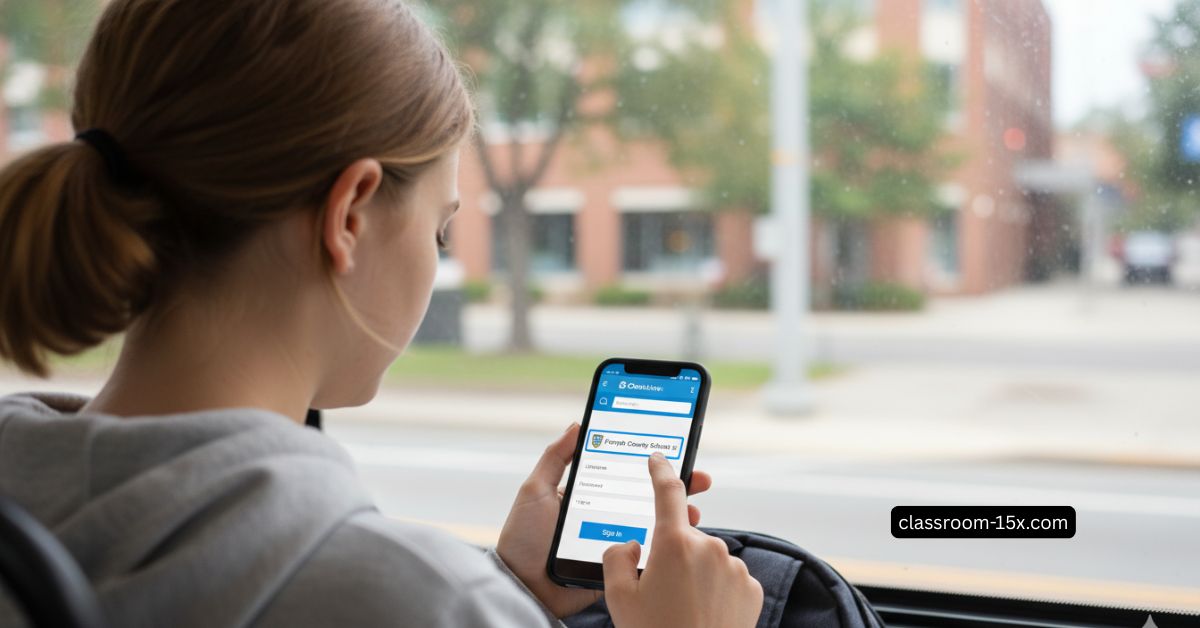
Need to check homework on the go? Download the free ClassLink Launchpad app.
On iPhone or iPad:
- Open the App Store.
- Search “ClassLink Launchpad.”
- Tap Get and install it.
On Android phone or tablet:
- Open Google Play.
- Search “ClassLink Launchpad.”
- Install it.
Open the app:
- Tap the search bar.
- Type “Forsyth.”
- Pick “Forsyth County Schools GA.”
- Enter your usual school username and password.
- Tap any app icon to open it.
The mobile app works great for quick checks of Canvas assignments or Google Docs.
Popular Apps in ClassLink Forsyth and What They Do
Here is a handy table of apps many Forsyth students use:
| App Name | What It Does | Who Uses It Most |
|---|---|---|
| Canvas | View classes, turn in homework, see grades | Students & Teachers |
| Google Drive | Save and share documents and files | Everyone |
| Office 365 | Word, Excel, PowerPoint online | Students & Teachers |
| Infinite Campus | Check grades and attendance | Students & Parents |
| BrainPOP | Fun videos and quizzes on any subject | Elementary Students |
| Discovery Education | Science and social studies videos | All grades |
Your teacher decides which apps show up for you. If something is missing, just ask.
Why ClassLink Forsyth Makes School Easier?
ClassLink saves time. You focus on learning instead of passwords. It is safe because the district controls every app. Only approved tools appear.
At home you use the exact same login. Parents love this because they can peek at Canvas or Infinite Campus without extra accounts.
Teachers say it cuts down on tech questions in class. Everyone stays on the same page.
Troubleshooting: Fix Login Problems Fast
Sometimes things do not work. Here are the most common fixes:
- Forgot password? Do not try to reset it inside ClassLink. Talk to your teacher or school tech specialist. They reset it for you.
- Browser asks for an extension? Install the ClassLink OneClick extension when it pops up. It is safe and only helps apps open faster.
- “Can’t find your login page”? Double-check you typed launchpad.classlink.com/forsyth exactly. Clear your browser cookies if needed.
- App missing from dashboard? Your teacher or the district IT team adds apps. Ask them.
- Works at school but not at home? Make sure your home internet is on and try a different browser.
- QuickCard will not scan? Clean the card and hold it steady under good light.
Still stuck? Many schools have a tech help page or status page. Check with your school office.
Extra Tips to Get More from ClassLink
- Add apps to favorites so you see them first.
- Use the search bar to find tools fast.
- Log out when you finish on a shared computer.
- Keep your password private—never share it.
- Check the ClassLink dashboard first thing each morning for new assignments.
Teachers: You can organize apps into folders for your class to make things even clearer for students.
Frequently Asked Questions About ClassLink Forsyth
Can I use ClassLink from home? Yes! It works on any computer or phone with internet. Use the same login you use at school.
What if I am a parent? Parents often use Infinite Campus through ClassLink to see grades. Ask your child to log in and show you, or request your own parent login from the school.
Is ClassLink safe? Yes. The district approves every app. It never stores your personal passwords outside school systems.
Why do I sometimes see a Microsoft sign-in? Forsyth uses Microsoft ADFS for secure login. It is just the safe way the school connects your account.
Can I log in on my Chromebook at school? Absolutely. Chromebooks are the most common device and work perfectly with ClassLink.
What if the whole dashboard is blank? Refresh the page or try logging in again. If it still happens, let your teacher know right away.
Does the mobile app cost money? No. It is completely free.
How do I get a QuickCard? Your teacher gives one to younger students at the beginning of the year.
Can I change my password myself? No. Contact your school tech person or teacher for password help.
Will ClassLink work on my old computer? It works on most modern browsers. If you see a message about an old browser, update Chrome or Edge.