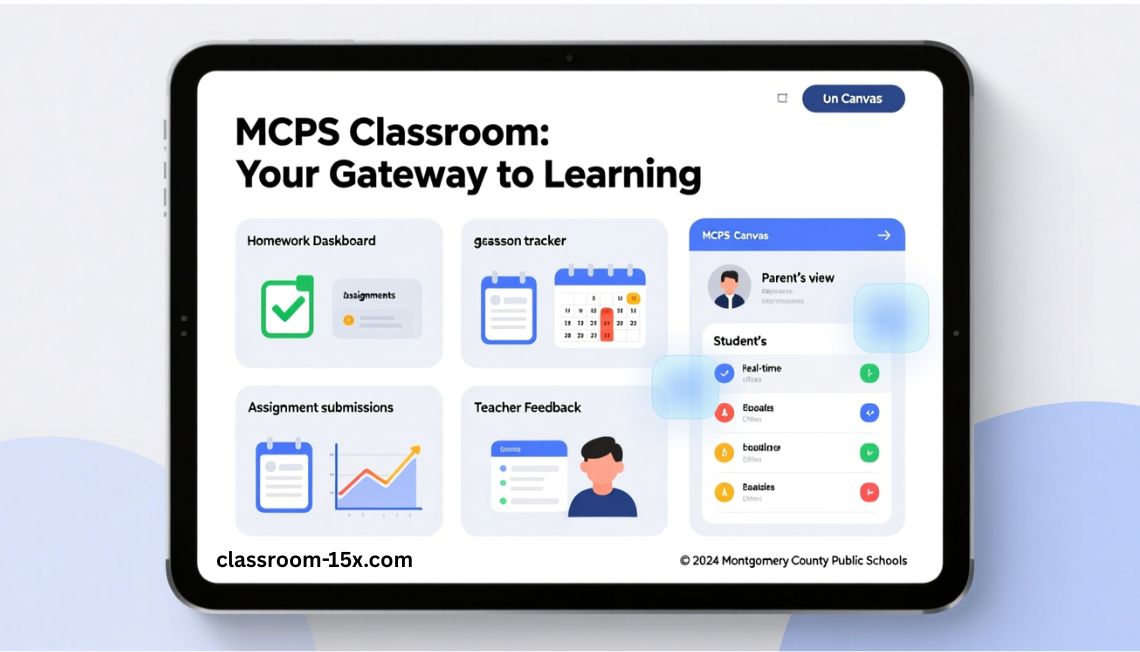
myMCPS Classroom is the main online learning tool for Montgomery County Public Schools (MCPS). It runs on Canvas, a popular platform. Students use it to see homework and grades. Parents can check on their child’s progress. Teachers post lessons, assignments, and feedback. This guide covers everything you need to know. We make it easy to understand and use.
What is myMCPS Classroom?
myMCPS Classroom is a digital portal built for MCPS staff, students, and families. It helps with daily school work. You can find class materials, due dates, and grades in one spot. It replaced older tools and now serves all grades. Many call it the MCPS Canvas portal. It keeps everyone connected, even on phones or computers.
How to Log In to myMCPS Classroom
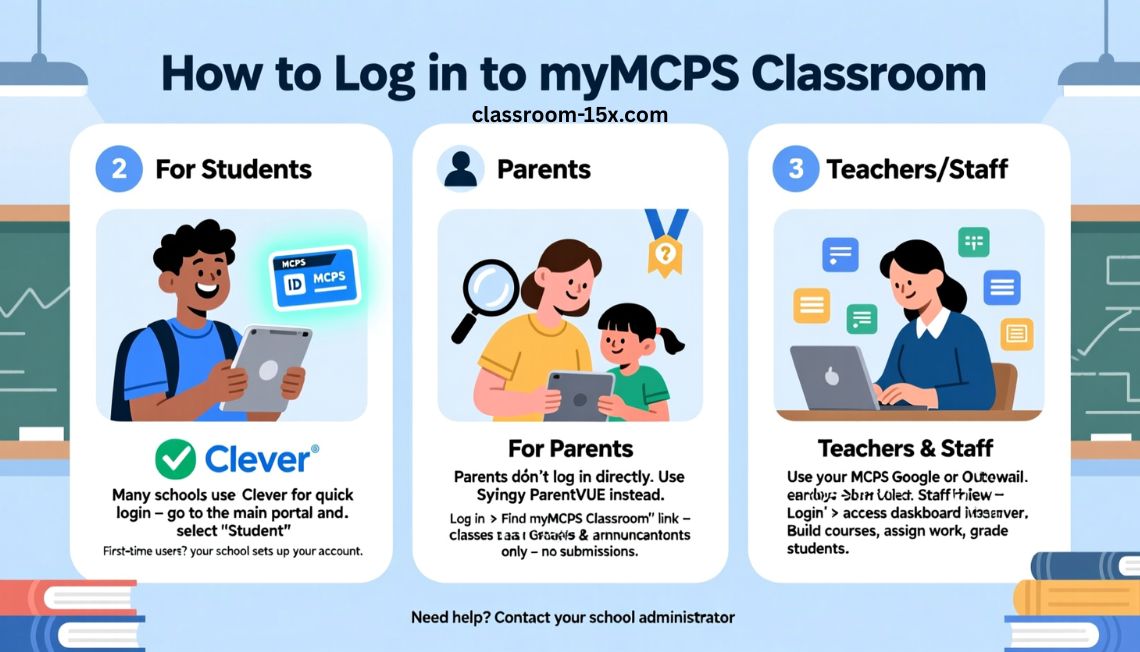
Login steps differ by user. Here are clear instructions.
For Students
- Use your MCPS student ID and password.
- Many schools use Clever for quick login, especially in elementary.
- Go to the main portal page.
- Pick the student option.
- If your school uses a different way, check with your teacher.
- First time? Your school sets up your account.
For Parents
- Parents do not log in directly most times.
- Use Synergy ParentVUE instead.
- Log into ParentVUE with your account.
- Look for the myMCPS Classroom link inside ParentVUE.
- Click it to see your child’s classes as an observer.
- You can view grades and announcements, but not submit work.
- Need a ParentVUE account? Activate it through your school.
For Teachers and Staff
- Use your MCPS Google account or Outlook email.
- Choose the staff login option on the main page.
- It takes you right to your dashboard.
- You can build courses, add assignments, and grade work.
Key Features in myMCPS Classroom
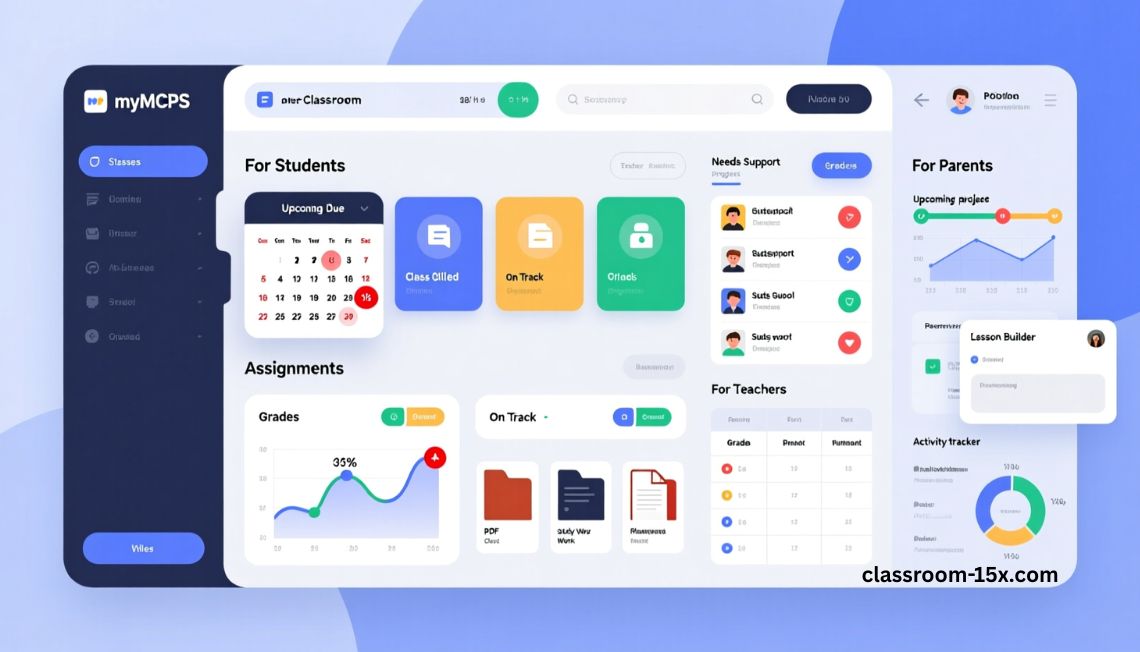
This tool has many helpful parts.
For Students
- Dashboard shows all your classes.
- Calendar lists due dates.
- Assignments section has homework to do or turn in.
- Grades page shows your scores.
- Inbox lets you message teachers.
- Files hold class notes and resources.
For Parents
- See your child’s classes and progress.
- Read teacher announcements.
- Check upcoming tests or projects.
- View posted grades and missing work.
- Get a big picture of how school is going.
For Teachers
- Create lessons and modules.
- Post assignments and quizzes.
- Grade and give feedback fast.
- Send announcements to the whole class.
- Track who viewed or submitted work.
Step-by-Step: How Students Use It Every Day
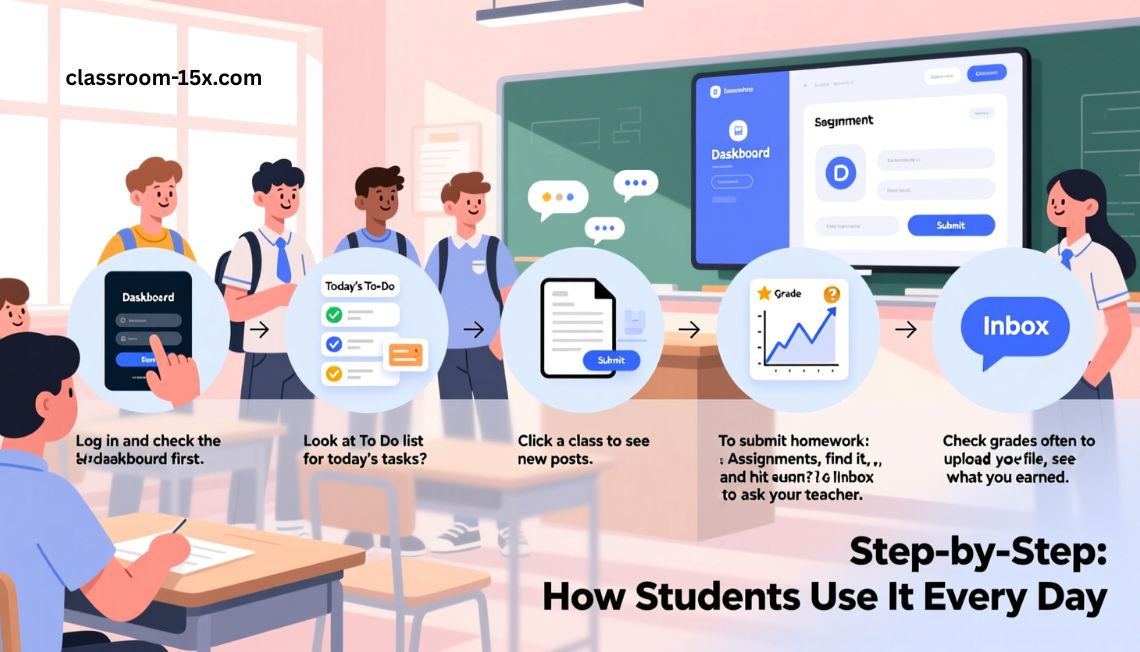
Follow these to stay on top of school.
- Log in and check the dashboard first.
- Look at To Do list for today’s tasks.
- Click a class to see new posts.
- To submit homework: Go to Assignments, find it, upload your file, and hit submit.
- Check grades often to see what you earned.
- Need help? Use the Inbox to ask your teacher.
Tips for Parents to Support Your Child
- Check myMCPS Classroom weekly through ParentVUE.
- Talk about due dates you see.
- Help set reminders for big projects.
- If grades drop, message the teacher from the portal.
- Encourage your child to use the calendar.
- It builds good habits for school success.
Read: Classroom Screen: Easy Guide to the Best Free Tool for Teachers in 2026
Common Login Problems and Quick Fixes
Many families face these issues. Here are fixes.
| Problem | Likely Cause | Fix |
|---|---|---|
| Can’t log in | Wrong password | Reset it through your school or ParentVUE/StudentVUE. |
| No classes show up | New school year or account link issue | Wait a day, or contact your teacher. Log out and back in. |
| Parent link not working | Not using ParentVUE | Always start in ParentVUE. Do not go direct. |
| App freezes or errors | Old version or phone issue | Use a web browser instead. Or update the Canvas app. |
| Forgot ID or password | Normal after breaks | Ask your school office for help. They reset fast. |
| Mobile login fails | Browser setting | Clear cache or try a different browser. |
Using myMCPS Classroom on Your Phone
Download the Canvas Student app (for kids) or Canvas Parent app. Log in the same way. You get notifications for new grades or messages. It works great for quick checks on the go. The full site works on phones too if you prefer.
Conclusion
myMCPS Classroom keeps MCPS learning simple and stress-free. With one easy login, students stay organized, parents stay informed, and teachers stay connected. Use it regularly, check the calendar, and turn school tasks into a smooth daily routine in 2025 and beyond.
FAQs About myMCPS Classroom
What if I can’t see my child’s classes as a parent? Make sure you start from ParentVUE. Classes may take a day to link at the start of school.
Is myMCPS Classroom the same as Canvas? Yes. MCPS brands it as myMCPS, but it uses Canvas tools.
How do students submit assignments late? Most teachers allow it, but it may mark as late. Check the assignment details.
Can parents message teachers directly? Yes, from the observer view in most cases.
What if we have tech problems at home? Contact your school first. MCPS has support for Chromebooks and logins.
Do all teachers use myMCPS Classroom? Most do for grades and assignments. Some add extra tools like Google Classroom.
How do I change notifications? Go to Account settings in the portal. Pick email or app alerts.
Is it safe and private? Yes. MCPS protects student data. Only you and school staff see your info.
Can multiple parents access one child? Yes. Each parent sets up their own ParentVUE account.
What about summer or breaks? You can still log in to review past work.