You teach kids every day. You want tools that help without cost. A free classroom screen is like a big digital board. It shows timers, noise checks, and more on your class projector. Tools like ClassroomScreen give you this for free. They keep kids focused and make your job simpler. Why use one? It saves time. It cuts noise. And it’s fun for students. In this guide, we’ll show you how to use it well. We’ll add tips and options the other sites miss.
What Is a Classroom Screen and How Does Free Make It Better?
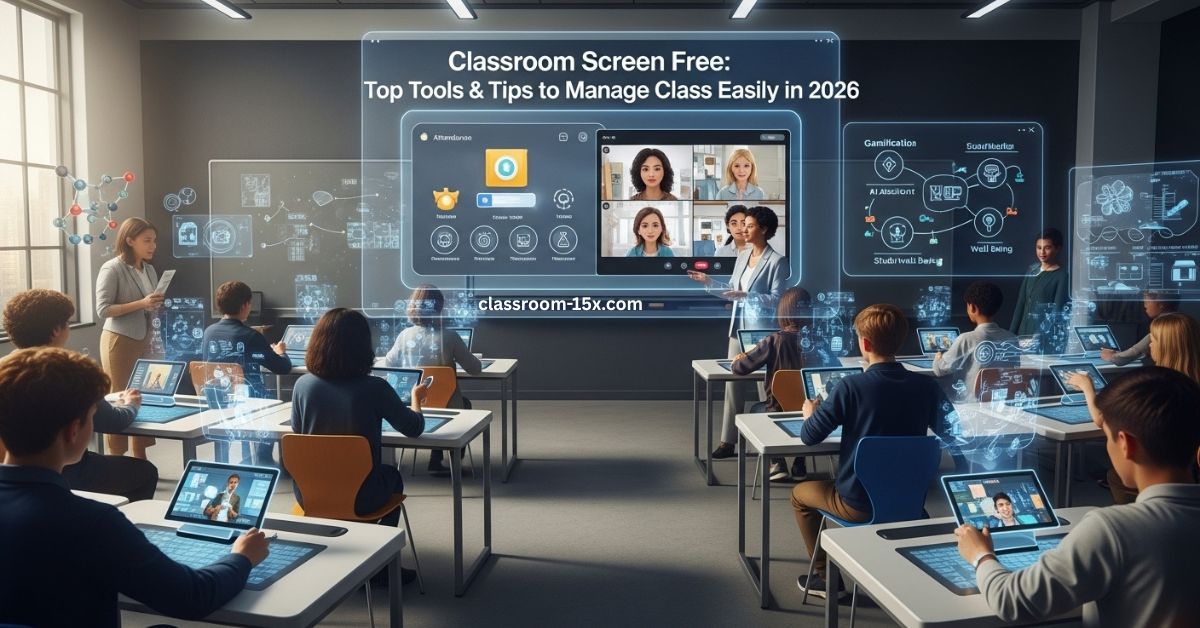
A classroom screen is an online tool. You put it on your big screen or projector. It has small parts called widgets. These help manage your class. Think timers to count down tasks. Or a noise meter to keep things quiet.
The free part is key. Sites like ClassroomScreen let you start without paying. You get most tools right away. No need to sign up at first. This fits busy teachers. You try it quick. If you like it, you can add more later. But free works great for basics.
Many teachers pick free ones. Over 2 million use ClassroomScreen. It runs in 180 countries. That’s a lot of classes. You get the same power without spending money.
Top Features in Free Classroom Screens
Free versions pack a punch. You get tools to engage kids and run smooth lessons. Here’s what you can use:
- Timers and Clocks: Set countdowns. Show how much time is left. Kids see it and stay on track.
- Noise Meters: A gauge shows sound levels. It turns red if too loud. Helps without yelling.
- Random Pickers: Pick names or groups by chance. Fair way to call on students.
- Polls and Votes: Ask quick questions. See answers as bars or pies. Gets kids involved.
- Text and Draw Boxes: Write notes or draw shapes. Add pics for fun.
- Traffic Lights: Green for go, red for stop. Clear signs for behavior.
- QR Codes: Link to sites or files. Kids scan with phones.
These come free. You mix them on one screen. Change colors or backgrounds. It’s like your own class dashboard.
Step-by-Step: Set Up Your Free Classroom Screen Today
Other guides skip this. But you need clear steps. Let’s walk through it. I’ll use ClassroomScreen as an example. It’s simple and free to start.
- Go to the site. No login yet.
- Pick a background. Choose plain or fun ones.
- Add widgets. Click the plus sign. Drag a timer or noise meter.
- Set them up. For a timer, pick minutes. Hit start.
- Show it full screen. Press F11 on your keyboard.
- Test it. Run a fake class to check.
- Save if you want. Sign up free to keep screens.
That’s it. Takes five minutes. You can change things anytime. Try it in your next lesson.
For more power, add student names to the random picker. Type them in. It remembers for the day.
Use Free Classroom Screens for Any Grade Level
Free screens work for all ages. Here’s how teachers use them. We’ll cover more than basics.
Pre-K and Early Grades
Little kids love pictures. Use big colors. Show daily plans with icons. Add a welcome message. Timers help switch activities. Noise meters teach quiet time. Make it fun with animal sounds or stars.
Middle School Kids
These students like groups. Use random team makers. Share polls on topics. Draw maps or charts for lessons. Timers keep games short. It helps with focus during work time.
High School Students
Older kids need their own pace. Make screens for solo tasks. Add links to study sites. Use votes for class choices. Noise checks keep chats low. Personalize with class jokes or goals.
Special Needs Classes
Every kid is different. Use big text for easy read. Add calm colors. Timers with sounds for alerts. Check-in polls for feelings. It helps kids who need extra cues.
Whole Schools or Districts
Big groups share ideas. Free versions let you try. Then buy for all if needed. Use templates for same look across classes. Track what works.
Read: Classroom Screens: Easy Tools to Engage Students and Simplify Teaching 2026
What Real Teachers Say and How They Use It
Teachers rave about these tools. One said, “It changed my class. No more yelling.” Another: “Kids love the games. They stay busy.”
From stories online:
- A first-grade teacher uses timers for clean-up. Kids race the clock.
- A math teacher polls quick quizzes. Sees who needs help fast.
- A special ed pro adds feeling charts. Kids pick emojis for mood.
You can do this too. It makes teaching less stress.
Extra Tips to Boost Your Free Classroom Screen
Here’s where we go beyond. These tips add value. They make your screen stand out.
- Mix widgets smart. Put timer next to task list. Kids see both.
- Change for seasons. Use holiday backgrounds. Keeps it fresh.
- Pair with phones. Make QR codes for homework links.
- Track noise trends. Note high times. Plan breaks then.
- Get kid input. Let them pick poll questions. Builds buy-in.
- Back up ideas. Jot notes on draw box. Save as pic.
Try one tip per week. You’ll see better focus.
Pick the Best Free Tool: Compare Your Options
Not all free screens are the same. ClassroomScreen is top. But check others. This table shows key ones.
| Tool Name | Free Widgets | Save Screens | Easy for Beginners | Best For |
|---|---|---|---|---|
| ClassroomScreen | 25+ | No (free) | Yes | Daily management |
| Whiteboard.fi | Basic draw | Yes | Yes | Quick quizzes |
| Padlet | Notes, polls | Yes (limited) | Yes | Idea sharing |
| Canva Whiteboard | Templates | Yes | Yes | Schedules |
| Miro Free | Boards | Yes (3) | Okay | Team work |
Pick based on needs. ClassroomScreen wins for class control. Others add extras like draw tools.
Common Questions About Free Classroom Screens
You might have questions. Here are answers. We added more than most guides.
Is ClassroomScreen really free forever?
Yes. The basic plan stays free. You get all widgets. Pay only for saves and shares.
Do I need to download anything?
No. It runs in your web browser. Works on any computer.
Can kids use it on their devices?
Some tools let you share links. But main screen is for the class projector.
What if my school blocks sites?
Check with IT. Most free tools work fine.
How do I make it safe for kids?
No ads in free mode. Keep screens simple. Don’t share personal info.
Are there limits on free use?
You can’t save without paying. But remake screens easy.
Can I use it offline?
No. Needs internet. Plan ahead.
What’s the cost to upgrade?
About $36 a year for pro. Adds saves and lists.
How does it help remote classes?
Share screen in video calls. Widgets work the same.
Any tips for first-timers?
Start small. Add one widget. Build from there.
Wrap Up
You now know all about free classroom screens. They make teaching easy and fun. Try one today. You’ll wonder how you taught without it. Pick ClassroomScreen for starters. Add our tips. Your class will thank you.